Set up a Meta custom conversion for your sales
Last updated October 17, 2026
Most sellers should simply optimise for the Purchase event, which Paylead sends automatically with the price. Use a custom conversion when you want a campaign to count one product's sales, or when you're used to setting ads up this way on another platform, like Selar.
Before you start, connect your Meta pixel.
Step 1: Copy your rule from Paylead
- Open Products and tap the product.
- Tap the green megaphone at the top (Promote with Meta ads).
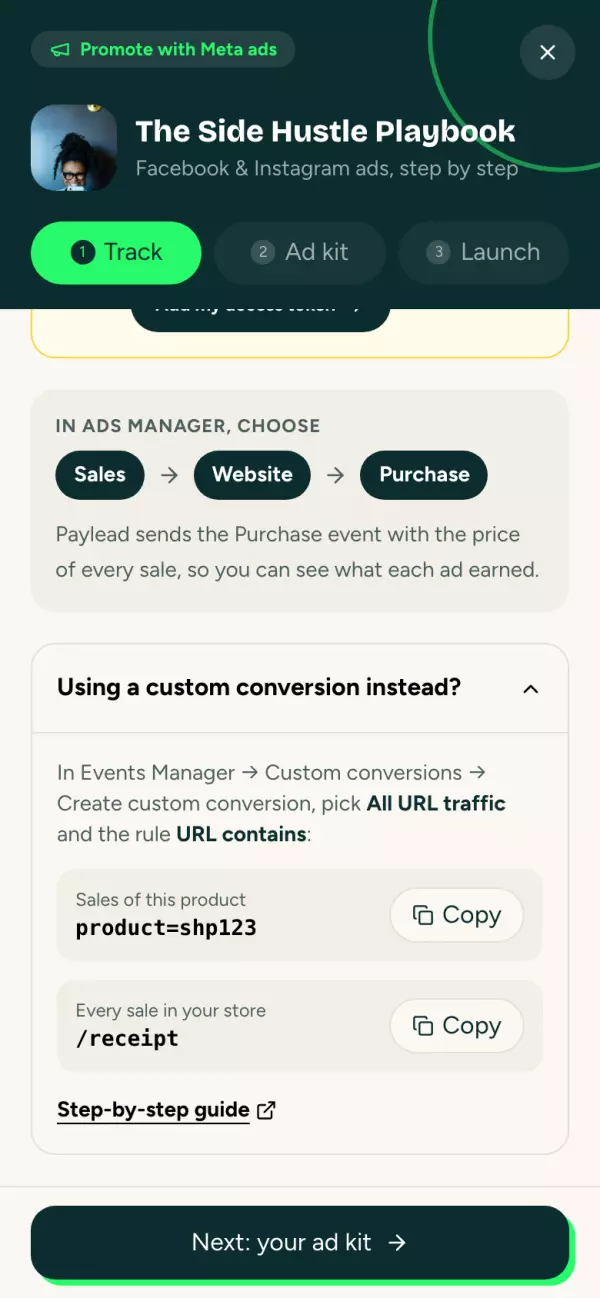
- On the Track step, tap Using a custom conversion instead?
- Tap Copy next to the rule you want:
- Sales of this product:
product=followed by the product's code - Every sale in your store:
/receipt
- Sales of this product:
Step 2: Create the custom conversion in Meta
- Go to business.facebook.com/events_manager.
- In the left menu, click Custom conversions.
- Click Create custom conversion.
- Name: something you'll recognise, like "Side Hustle Playbook sale".
- Data source: choose the pixel (dataset) you connected to Paylead.
- Conversion event: choose All URL traffic.
- Rules: choose URL, then contains, and paste the rule you copied.
- Optional: add a value (your product's price), so Ads Manager can show what the ads earned.
- Click Create.
Step 3: Use it in your campaign
- In Ads Manager, open your campaign's ad set.
- Under Conversion, set Conversion location to Website.
- Under Conversion event, choose your new custom conversion.
Why this works on Paylead
Right after paying, buyers land on their receipt:
yourstore.paylead.app/receipt/ORD-2026-AB12CD34?product=abc123
- Every receipt address contains /receipt.
- Right after checkout it also contains product= and the product's code. A cart with several products has one
product=for each. - Emailed receipt links don't carry
product=, so a buyer who comes back later to download again doesn't count as a second sale.
If the product has its own thank-you page
If you set a thank-you page in the product's settings, buyers go there instead of the Paylead receipt. The Track step shows that page's address instead: use it with URL contains.
Good to know
- A custom conversion only counts sales from the day you create it, so create it before you start the ads.
- Meta can take a little while to mark a new custom conversion as active.
- The Purchase event still gives the fullest numbers, because Paylead also sends it from our servers when mobile money payments are confirmed.