Promote a product with Meta ads
Every product on Paylead has a Promote with Meta ads panel. It takes you through three steps: Track, Ad kit and Launch.
Open the panel
You can open it three ways:
- Right after you create a product: tap Promote with Meta ads on the dark banner at the top of your product list.
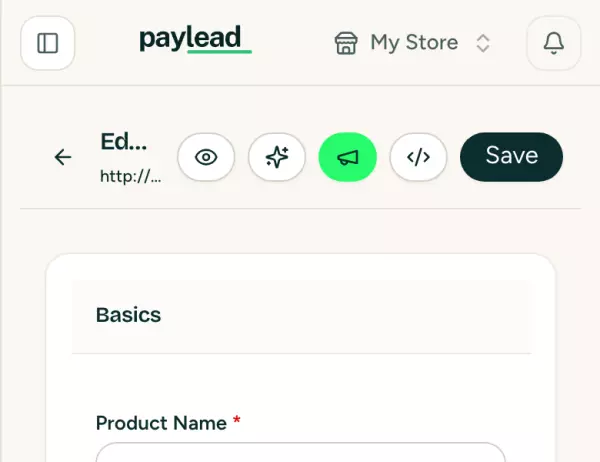
- From the product: open Products, tap the product, then tap the green megaphone at the top of the page.
- From your product list: tap ⋯ next to a product, then Promote with Meta ads.
Step 1: Track
The panel checks two things:
- Meta pixel: shows On when your pixel is connected.
- Conversions API: shows On when your access token is added.
If either says Not set up, tap the button under it (Add my Meta pixel or Add my access token). It opens Store settings → Integrations. Follow connect your Meta and TikTok pixels, then come back.
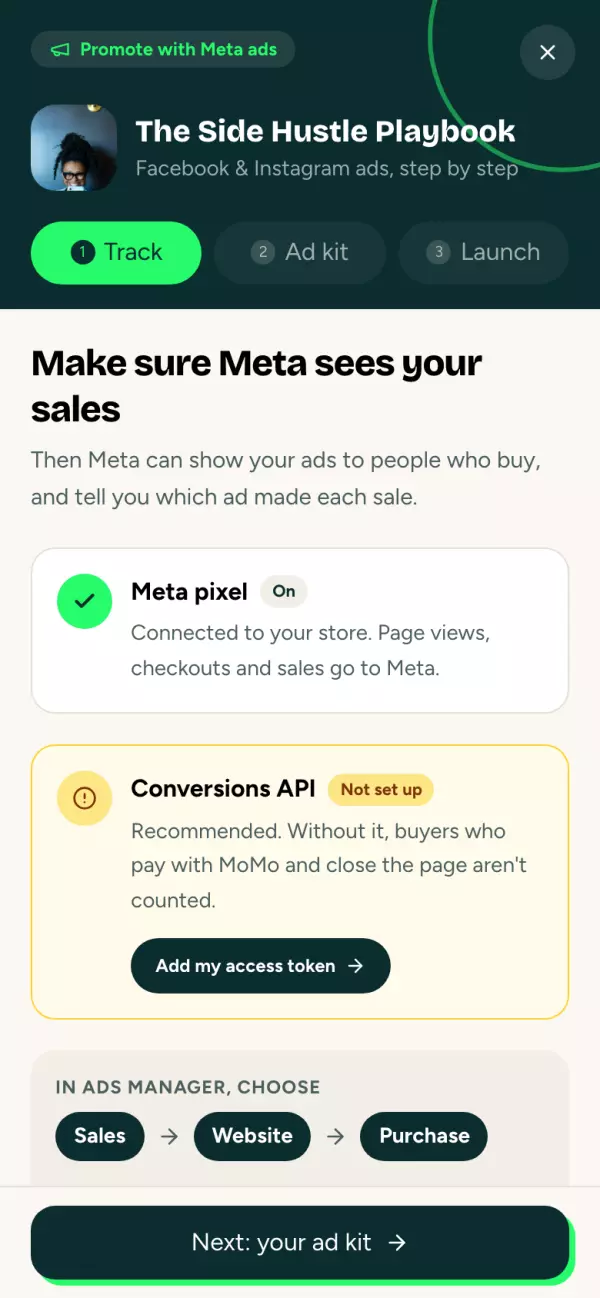
The grey box shows what to pick in Ads Manager: Sales → Website → Purchase. Want a custom conversion instead? Tap Using a custom conversion instead? (how).
Tap Next: your ad kit.
Step 2: Ad kit
- Tap Write my ad kit at the bottom. It takes about 20 seconds.
- Your kit opens in three tabs: Headlines, Ad text and Creatives.
- Tap Copy next to anything you want to use. It turns green when it's copied.
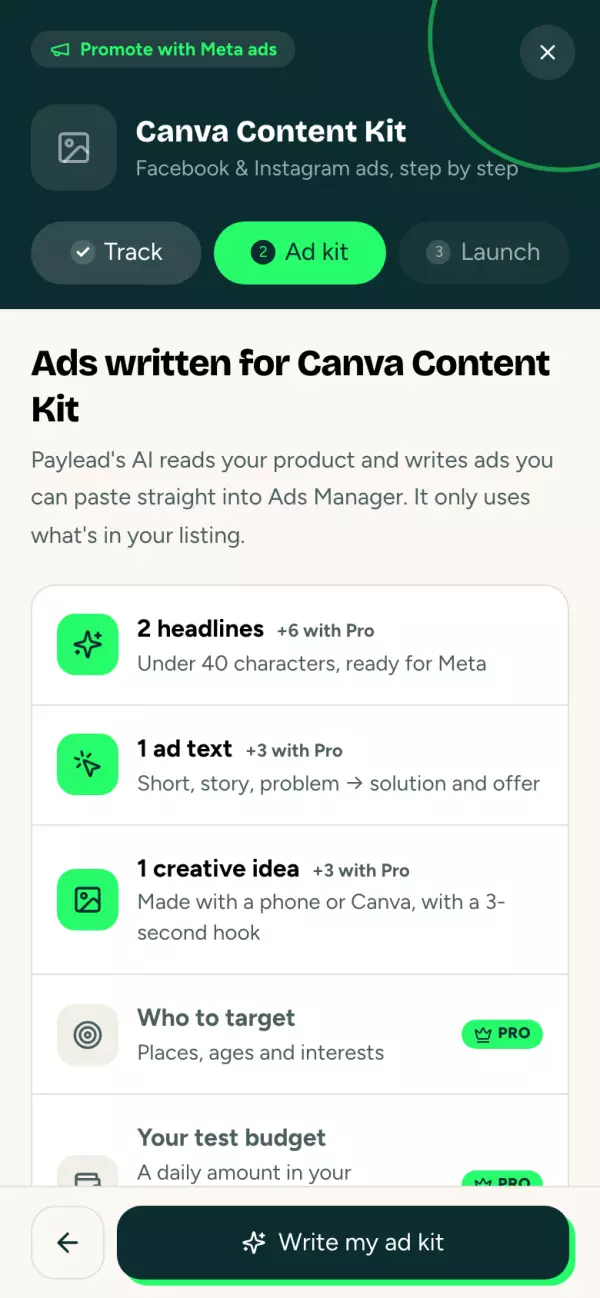
What you get:
| Starter | Pro and Business | |
|---|---|---|
| Headlines (under 40 characters) | 2 | 8 |
| Ad texts (short, story, problem → solution, offer) | 1 | 4 |
| Creative ideas with a 3-second hook | 1 | 4 |
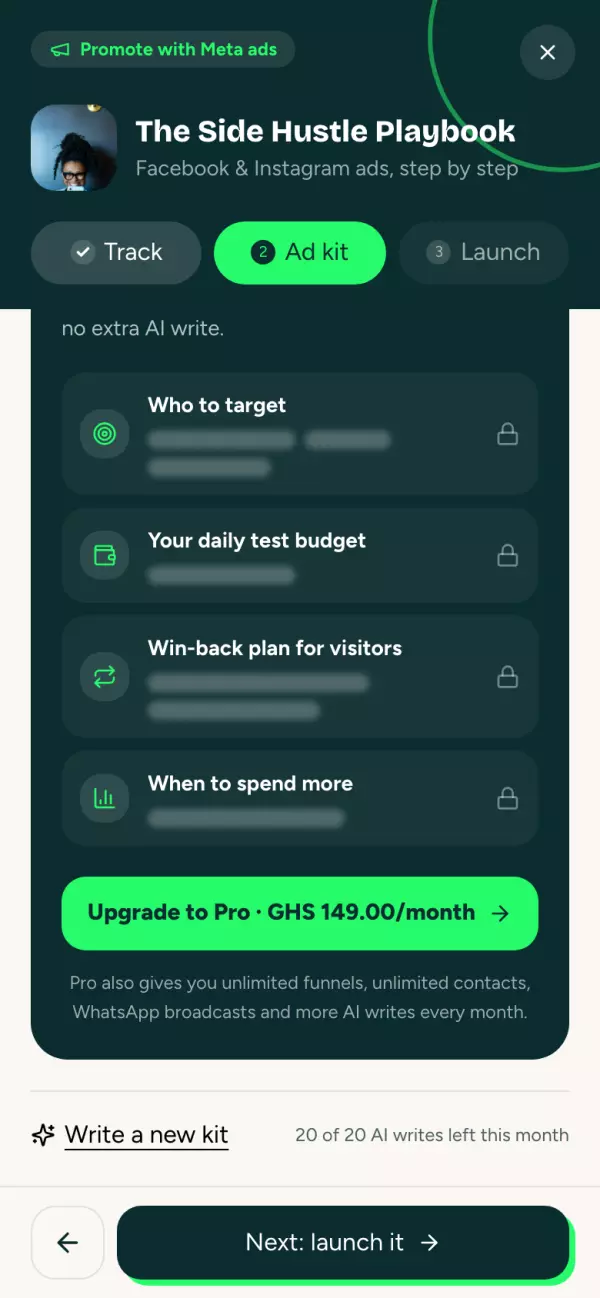
| Who to target: places, ages and interests | ✓ | |
| A daily test budget and when to spend more | ✓ | |
| A win-back plan for visitors who didn't buy | ✓ |
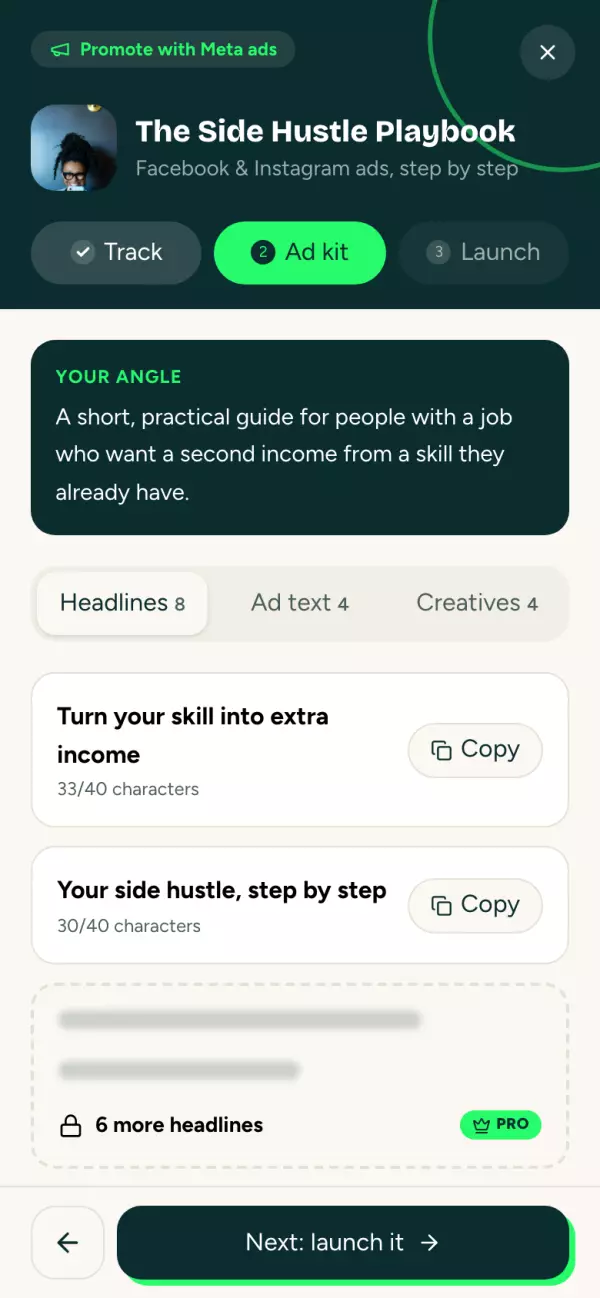
On Starter, the rest of the kit shows as locked. Paylead has already written it: tap Upgrade to Pro and the full brief appears straight away, without using another AI write.
Good to know:
- Each kit uses one AI write from your monthly allowance. You can see how many you have left under the kit.
- The kit is saved on the product, so opening it again is free.
- Write a new kit gives you fresh ideas and uses another AI write.
- The AI only uses what's in your product listing and never makes up reviews, results or numbers. A clear product description gives you better ads.
Tap Next: launch it.
Step 3: Launch
The panel gives you a checklist. Tap the number next to each step to tick it off as you go. Paylead remembers where you got to on that phone or computer.
- Create a Sales campaign: in Ads Manager, tap + Create, choose Sales, then Continue.
- Point it at your sales: in the ad set, set Conversion location to Website, pick your pixel and choose Purchase (or your custom conversion).
- Set a small test budget: on Pro, the panel shows the daily amount for this product.
- Build the ad: paste a headline and ad text from your kit, add your photo or video, tap Copy next to your product link and paste it as the Website URL. Use the call-to-action button the panel suggests.
- Publish and wait: tap Publish, then give it 3 to 5 days before you judge it.
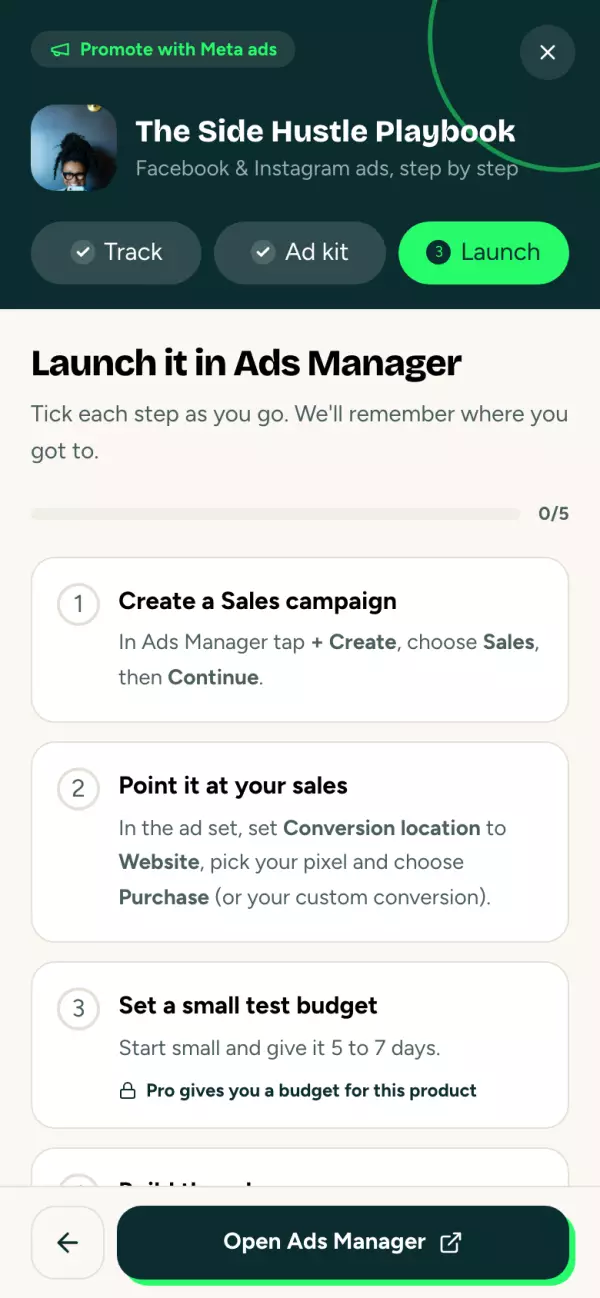
Tap Open Ads Manager at the bottom to go straight there.
After a few days
In Ads Manager, add the Purchases and Cost per purchase columns. Keep the ads that sell at a cost you're happy with, switch off the rest, and put more money behind the winner.
Questions
I don't see the megaphone. It appears once a product is saved. Finish creating the product, then open it again.
"You can't write the kit." Writing a kit needs permission to edit products. Ask your store owner to check your role.
"No AI writes left this month." Your allowance resets on the 1st. Upgrade for more writes each month.
Can I use the kit for TikTok or WhatsApp too? Yes. The headlines, ad text and creative ideas work anywhere you post.